WorldfallBeta

Modding guide

Making models

Replace any 3D model in Worldfall with your own. Build it in Blender, export a .glb into a pack folder, and it shows in the game a couple of seconds later.

  • Blender 4.2 or newer
  • Worldfall 0.9.8 or newer
  • Windows, Mac, Linux

The kit holds the example pack from the walkthroughs below (a shovel, a sword and a wolf), their .blend files, and a size reference with the game's own models in meters.

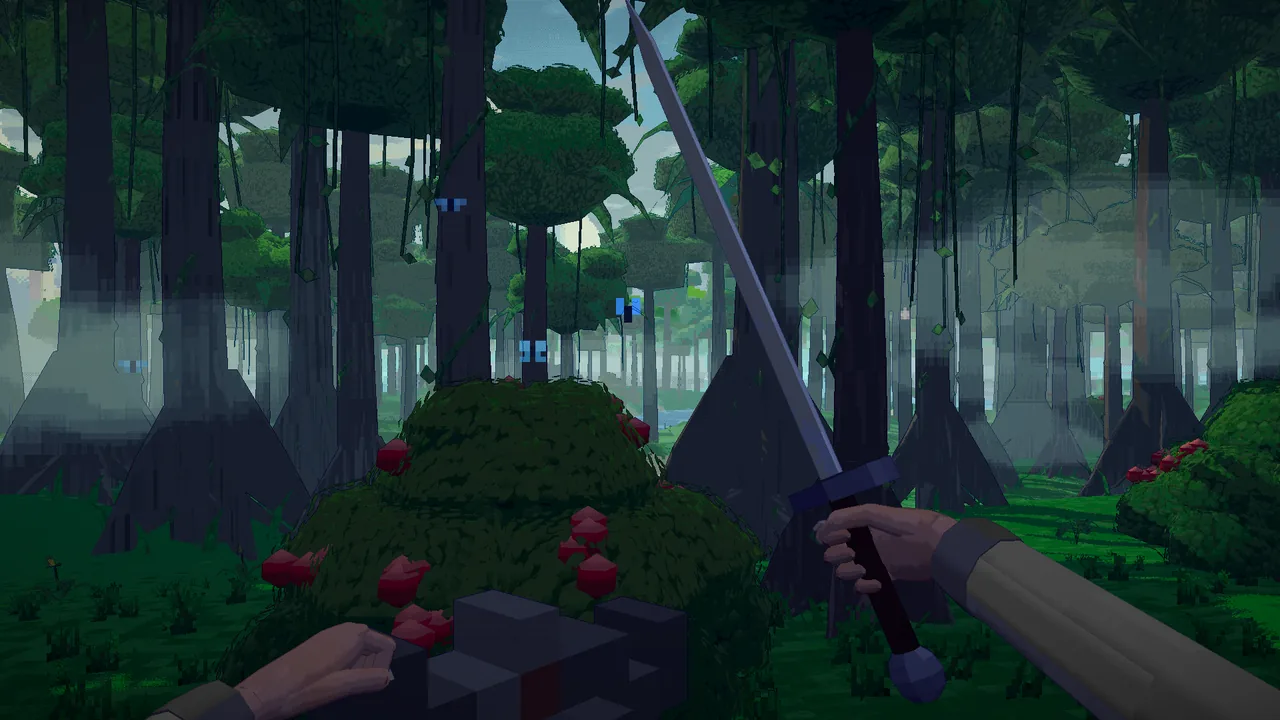
First person in a forest, the right hand holding a plain iron sword made in Blender for this guide.
The sword from walkthrough 2, in the game.

Quick start

Seven steps to your model in the game. The rest of this page explains each one.

  1. In WorldBox press F2, open Mods, press Publish, then New pack. It makes a pack folder named my_pack. Pack folder, top right of the Mods window, opens the folder that holds it.
  2. Find the name of the model you want to replace in model_names.txt, in the folder Pack folder opens. Its second column is the model's size in meters.
  3. Build your model in Blender in meters, with Z up, at that size: X × Y × Z as the sidebar's Dimensions show them. A person is 1.75 m tall.
  4. Place the model so the world's origin (0, 0, 0) is where the game holds or stands it: the grip of a held thing, the ground under a creature or a building.
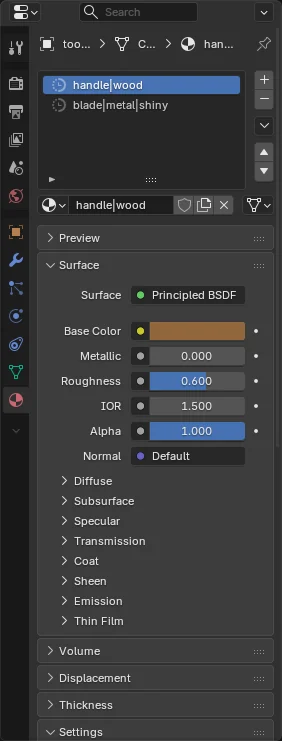
  5. Name each material name|kind, for example handle|wood or blade|metal|shiny.
  6. File › Export › glTF 2.0, format glTF Binary, Apply Modifiers on. Save it as models/<name>.glb in your pack.
  7. On the Mods window's Installed page, move your pack from Available to Active. While it is on, every export into models shows in the game within about two seconds. Keep your .blend files outside the pack.

Sizes

Build at real size, in meters

A person is 1.75 m tall and a sword is about 1 m long. Keep Blender's units as they are (Metric, Unit Scale 1.0). For the model you replace, match the size model_names.txt gives. That is right for every kind.

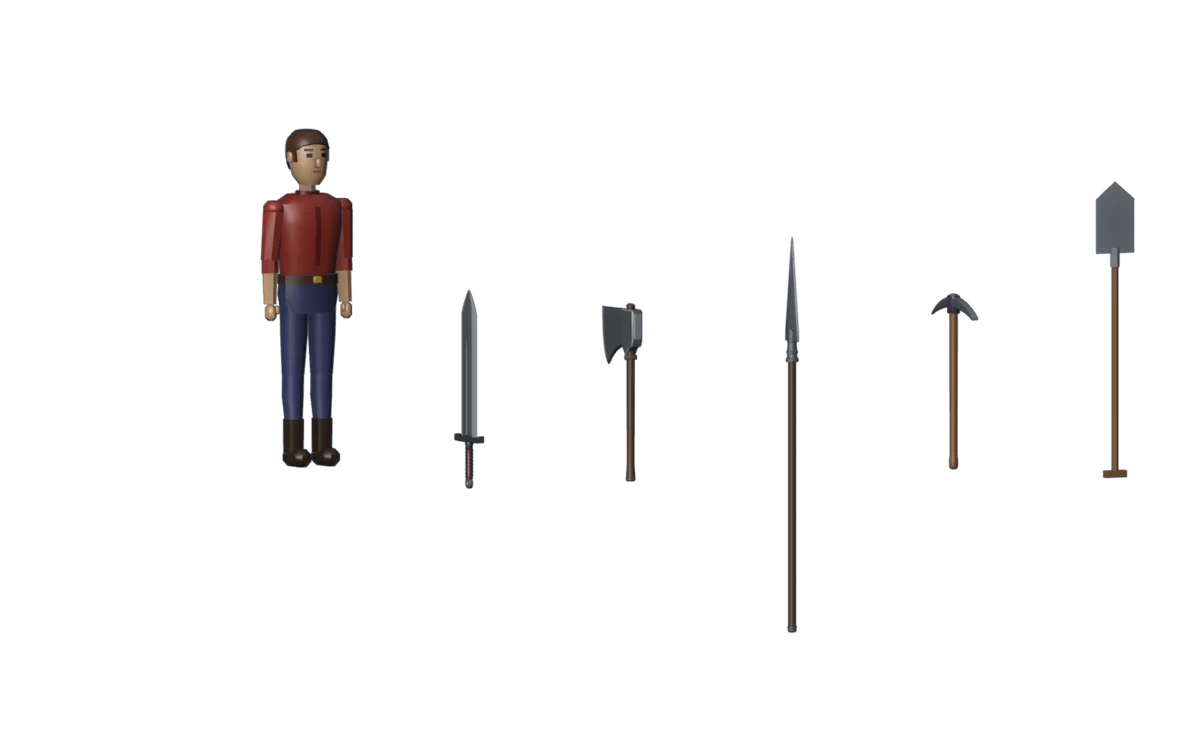
A body 1.75 m tall beside a sword, an axe, a spear, a pickaxe and a shovel, each standing on its grip.
Held things beside a body 1.75 m tall, at the sizes you build them. The dot on each is its origin, where the hand closes.

How the game uses your size

Most kinds are drawn as big as you build them. Buildings, monsters and ships are scaled to their sprite the same way as the game's model they replace, so one twice as big is drawn twice as big. Only people, trees, bushes, rocks and eggs are stretched to their sprite, where just the proportions count.

On this page, origin means the world origin (0, 0, 0) of your Blender file: the game puts that point where the model stands or is held. An object's own origin only matters for a part that moves, as its joint.

KindNamesDrawn
Held weapons, work tools, carried thingsheld_ tool_ item_ load_Your size
Animalsanimal_Your size (the young at about half)
Furniture and room propsint_ cabin_Your size
Crabzilla, volcano, geyserscrabzilla nature_volcano nature_geyserYour size
The dragon, placed lights, small plants, cropsmonster_dragon light_ plant_ crop_wheat_Close to your size
Buildings, wondershouse_ hall_ tent_ nature_ and moreYour size, at the original's scale
Monstersmonster_Your size, at the original's scale
Shipsboat_Your size, at the original's scale, within limits
Peopleperson_Stretched to the sprite's height
Trees, bushes, rockstree_ bush rock_Stretched to the sprite's height
Eggsegg_Stretched to the sprite

Or let the game fit it

Turn on fit in your pack's worldfall.json and size stops mattering. The game scales each model evenly about its origin until its longest side matches the model it replaces.

"fit": true at the top fits every model in the pack. A model's own "fit" under "models" overrides it. A fitted model can't end up bigger or smaller than the original, so turn fit off for one you made bigger on purpose. Another mod's creature has nothing to fit to and keeps the size you built. Fit is off unless you turn it on.

{
  "id": "my_pack",
  "title": "My pack",
  "version": "1.0.0",
  "fit": true,
  "models": {
    "held_sword_iron": { "fit": false }
  }
}

Export

Export settings

Use Blender's own exporter: File › Export › glTF 2.0 (.glb/.gltf). No add-on is needed. Change these settings and leave the rest as they are.

FormatglTF Binary (.glb)Only .glb is read. A .gltf, .fbx or .obj is skipped with a note.
Include › Limit toSelected ObjectsUse it when the file holds anything else, such as a reference model. Leave it off when the scene is only your model.
Transform › +Y UpOn (the default)With it off, the model lies on its back.
Data › Mesh › Apply ModifiersOnOff by default. Without it Solidify, Mirror and Bevel are left out of the file.
Data › CompressionOff (the default)Draco-compressed meshes are refused.
Data › ImagesAutomatic (the default)Textures are packed into the .glb as PNG, or JPEG when the source is one. WebP is not read.
AnimationOffAnimations are ignored. The game moves the parts itself.
File namemodels/<name>.glbThe model's name from model_names.txt: lowercase letters, digits and _. Straight in models, not in a folder below it.

You don't need to apply transforms first. Each object's location, rotation and scale are read from the file and baked in. Where the model sits relative to the world origin is what counts.

Walkthroughs

Three models, start to finish

Each one was made as written here and checked in the game. The kit has the finished .blend files and the pack.

1 of 3tool_shovel1.54 m

A dig shovel

Replaces the shovel you dig with in first person. The hand holds it at the origin, 20 cm up from the end of the handle, with the blade up the Z axis.
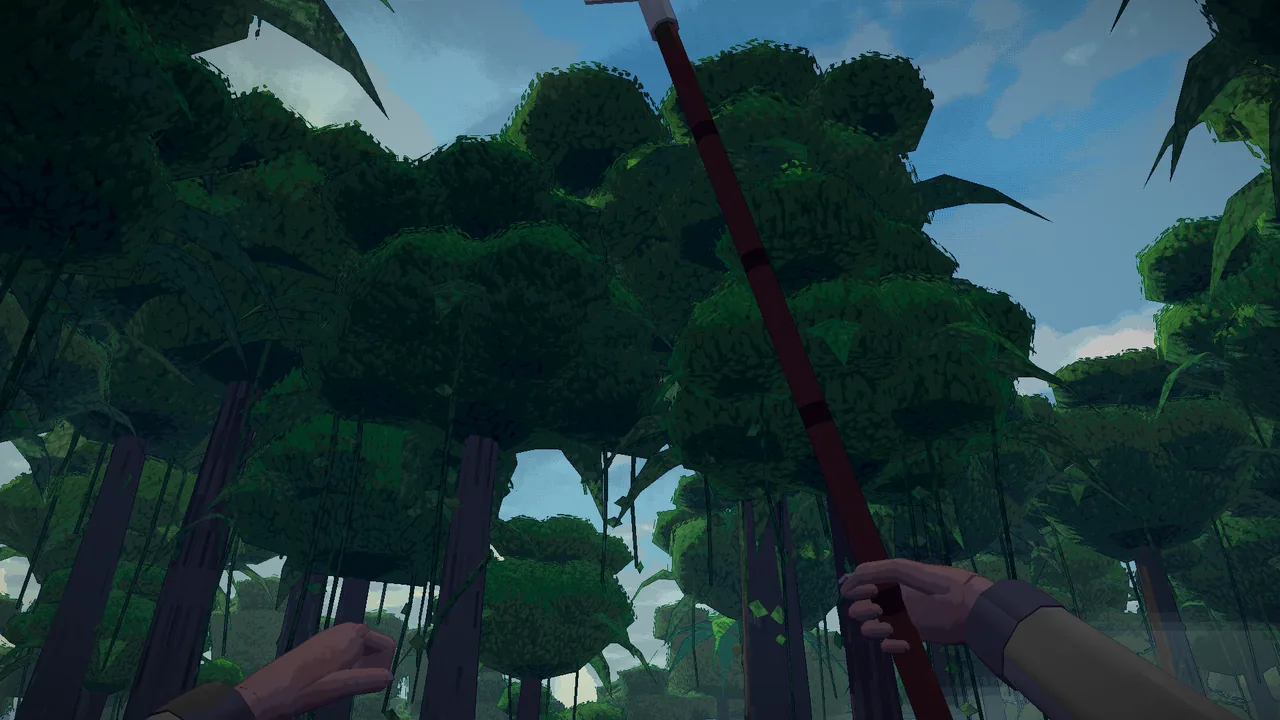
First person looking up, the right hand holding the shovel made in this walkthrough.
The finished shovel in the game, looking up.
  1. Open Blender and start a General file. Delete the cube (X). The scene is already in meters.
  2. The handle. Add › Mesh › Cylinder. In the panel that opens bottom left, set Vertices 8, Radius 0.018 m, Depth 1.15 m, Location Z 0.375 m. It now runs from 20 cm below the origin to 95 cm above it.
  3. The grip. Add › Mesh › Cube at Location Z −0.2 m. In the sidebar (N), set its Dimensions to 0.12 × 0.035 × 0.035 m.
  4. The blade. Add › Mesh › Plane with Rotation X 90° and Location Z 1.1 m. Set Dimensions X 0.22 m and Y 0.30 m (standing up, the plane's own Y is its height). It stands across the handle with its face looking along Y.
  5. Its point. In Edit Mode (Tab), select the top edge and Subdivide. Move the new middle vertex up 7 cm (G Z 0.07) and the two top corners down 2 cm.
  6. Thickness. Add Modifier › Generate › Solidify, Thickness 0.006 m, Offset 0, then Apply it (Ctrl+A over the modifier). Joining in step 9 keeps only one object's modifiers, so apply it now.
  7. The socket. Add › Mesh › Cylinder with Vertices 8, Radius 0.024 m, Depth 0.1 m, Location Z 0.93 m.
  8. Materials. Select the handle and, in Material Properties, press New and rename the material handle|wood. For the grip, pick handle|wood from the list beside New. Make blade|metal|shiny for the blade and the socket. Each one's color is its Base Color. To paint it instead, plug an image into Base Color and UV-unwrap the object: the image is drawn on it in the game.
  9. Join. Select all (A), press Ctrl+J, then Ctrl+A › All Transforms. That puts the object's origin at the world origin, 20 cm up the handle where the hand holds it, and makes the sidebar read true: about 0.22 × 0.05 × 1.54 m.
  10. Export with the settings above as models/tool_shovel.glb in your pack. Turn the pack on, put a shovel in your hotbar, and look up.
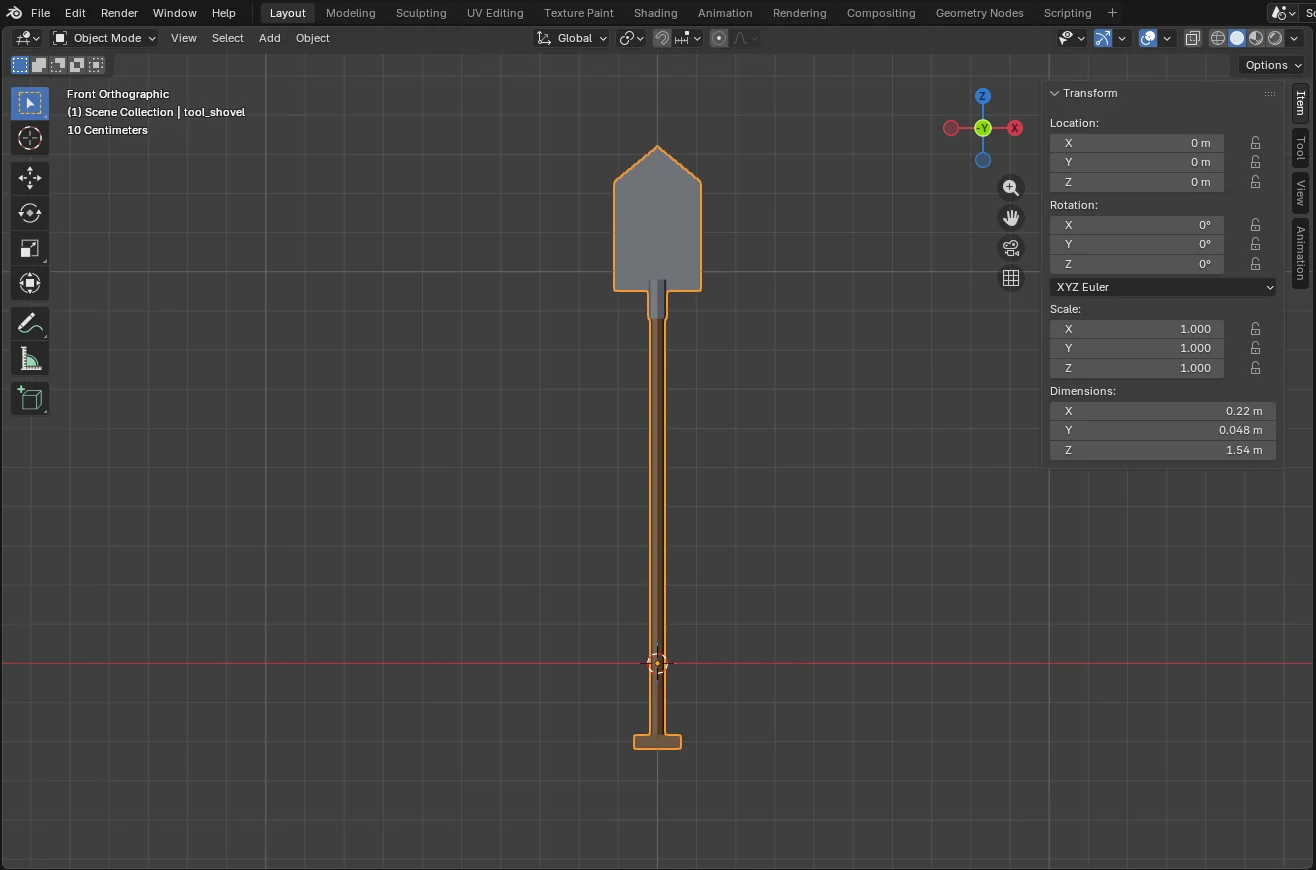
Blender, front view: the shovel standing on the Z axis, its origin at the grip, the sidebar showing dimensions 0.22 by 0.048 by 1.54 meters.
Front view. The red line is height 0: the hand holds the shovel where it crosses the handle.
Blender's Material Properties listing two materials named handle|wood and blade|metal|shiny.
The two materials.

The shovel is made in code, not in the model library. model_names.txt lists tool_shovel with its size but no info.
2 of 3held_sword_iron1.03 m

An iron sword

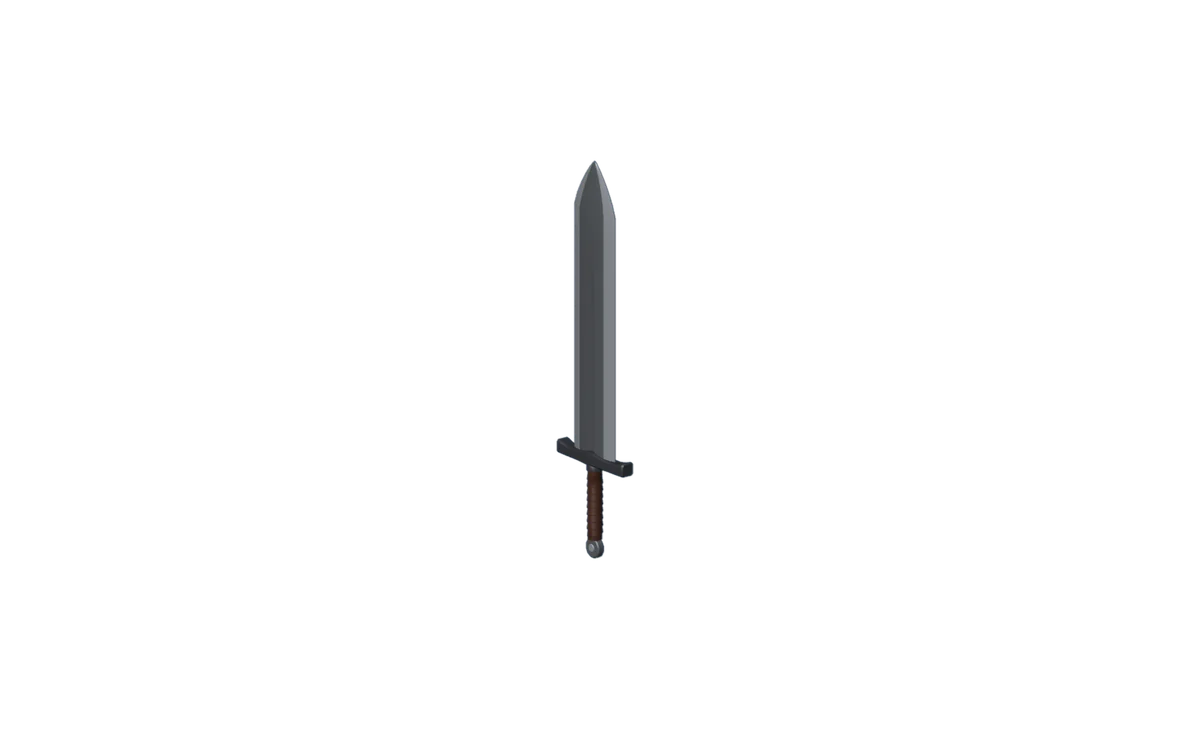
Held at the middle of the grip, the blade straight up the Z axis, the edges pointing along Y. Every material has its own sword: held_sword_ + wood, stone, copper, bronze, iron, silver, steel, mythril or adamantine.

An iron sword with three arrows from its grip: Z up the blade, Y toward the edge, X to the side.
A held thing's axes. Swords, axes, hammers, spears, staffs and tools all follow them.
  1. Start a General file and delete the cube.
  2. The blade. Add › Mesh › Cube at Location Z 0.485 m, Dimensions 0.006 × 0.05 × 0.78 m. It is thin along X and wide along Y, so its edges point along Y.
  3. The point. In Edit Mode, hold the mouse over a long edge, press Ctrl+R, click, and right-click to keep the cut in the middle. Move it up 27 cm (G Z 0.27), 12 cm below the top. Select the four top vertices and scale them to nothing along Y (S Y 0), then to 0.3 along X.
  4. The guard. A Cube at Location Z 0.08 m, Dimensions 0.03 × 0.22 × 0.025 m. It runs along Y, like the edges.
  5. The grip and pommel. A Cylinder with Vertices 8, Radius 0.016 m, Depth 0.18 m at Z −0.02 m, and a UV Sphere with Segments 8, Rings 6, Radius 0.03 m at Z −0.13 m.
  6. Materials. blade|metal|shiny for the blade, guard|metal for the guard and pommel, grip|cloth for the grip.
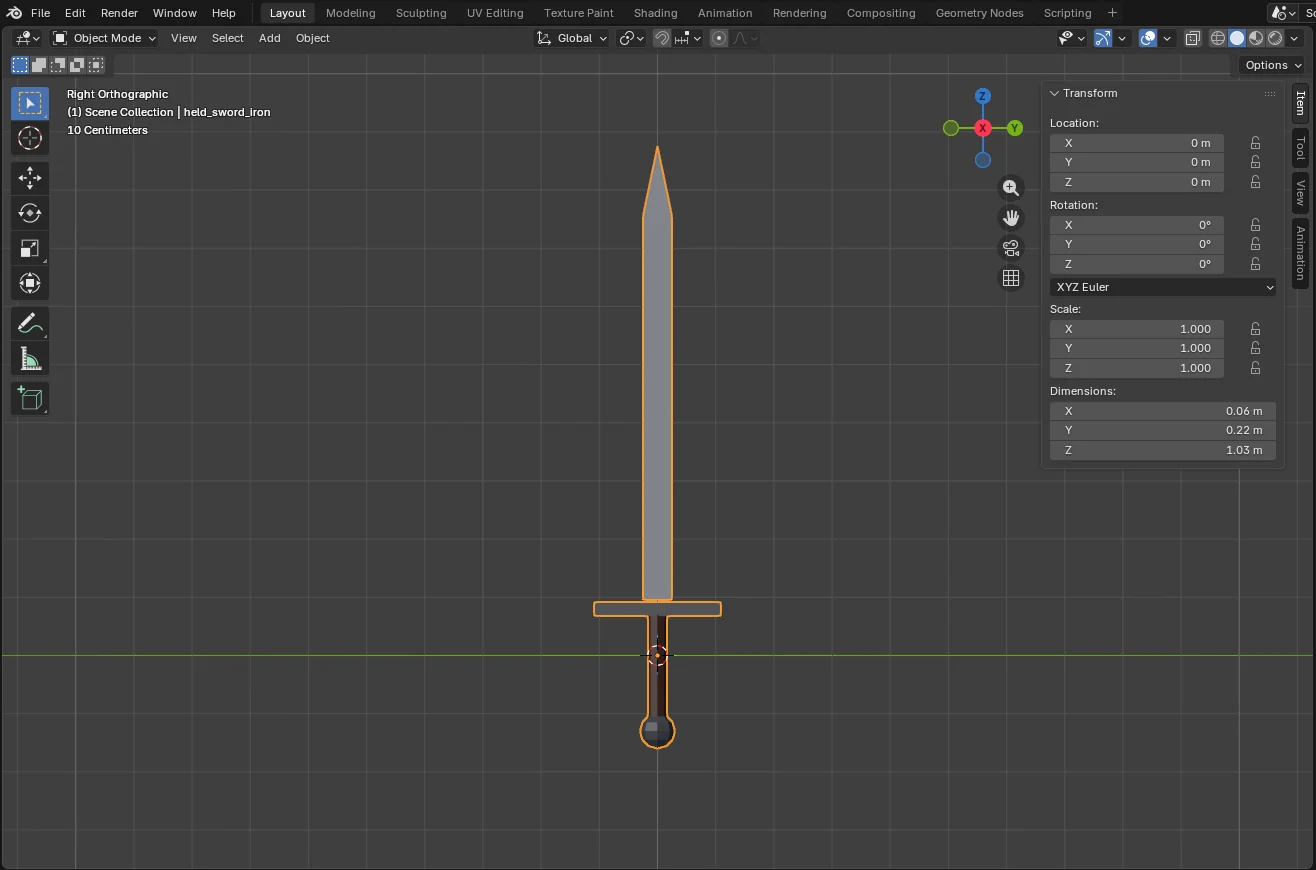
  7. Join with Ctrl+J, then Ctrl+A › All Transforms. The world origin is the middle of the grip. The sidebar should read about 0.06 × 0.22 × 1.03 m.
  8. Export as models/held_sword_iron.glb. Hold an iron sword in the game to see it.
Blender, right view: the sword upright, its guard running left and right along Y, the sidebar showing 0.06 by 0.22 by 1.03 meters, three materials listed.
Right view, looking along X: the edges and guard run along Y.

Nearer and further versions. The game draws held_sword_iron_m from about 11 tiles away and held_sword_iron_f from about 30. If your pack has only held_sword_iron, it is used at every distance. A model under about 2,000 triangles needs no others. For heavier ones, copy the model, add a Decimate modifier and export each copy under its _m or _f name.

3 of 3animal_wolf1.7 m long

A wolf

Creatures are built from parts the game moves by name. A wolf's are body, head, leg_fl, leg_fr, leg_bl, leg_br and tail. model_names.txt lists every creature's parts.

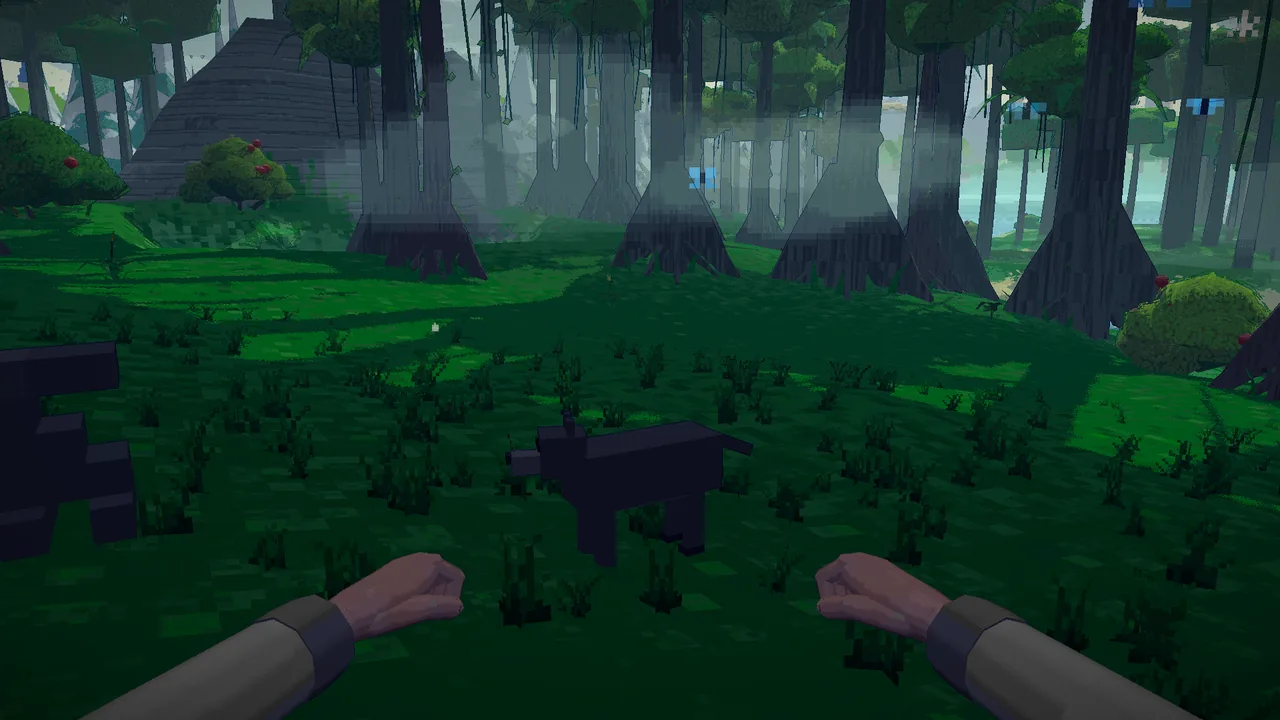
First person in a forest clearing, a blocky wolf made of boxes standing a few steps ahead, colored in the game's dark wolf fur.
The box wolf in the game. Its fur takes the colors of the wolf's sprite.
  1. Build each part as its own object, from cubes (Dimensions, then Location). The body 0.36 × 0.92 × 0.34 m at (0, 0.02, 0.58). The head 0.24 × 0.26 × 0.24 m at (0, −0.5, 0.74). Each leg 0.09 × 0.1 × 0.56 m at X ±0.11, Y −0.3 (front) or 0.32 (back), Z 0.28. The tail 0.08 × 0.42 × 0.08 m at (0, 0.66, 0.62), tilted −25° on X. The feet are on the ground (Z 0) and the head points toward −Y, so in Front view (Numpad 1) you look at its face.
  2. Details join their part. Add a snout, nose, ears and eyes, then Ctrl+J them into the head, a belly into the body and a paw into each leg. A separate snout would not turn with the head.
  3. Name the objects exactly body, head, leg_fl, leg_fr, leg_bl, leg_br and tail. As in the game's own wolf, leg_fl and leg_bl go on the −X side. The mesh names don't matter.
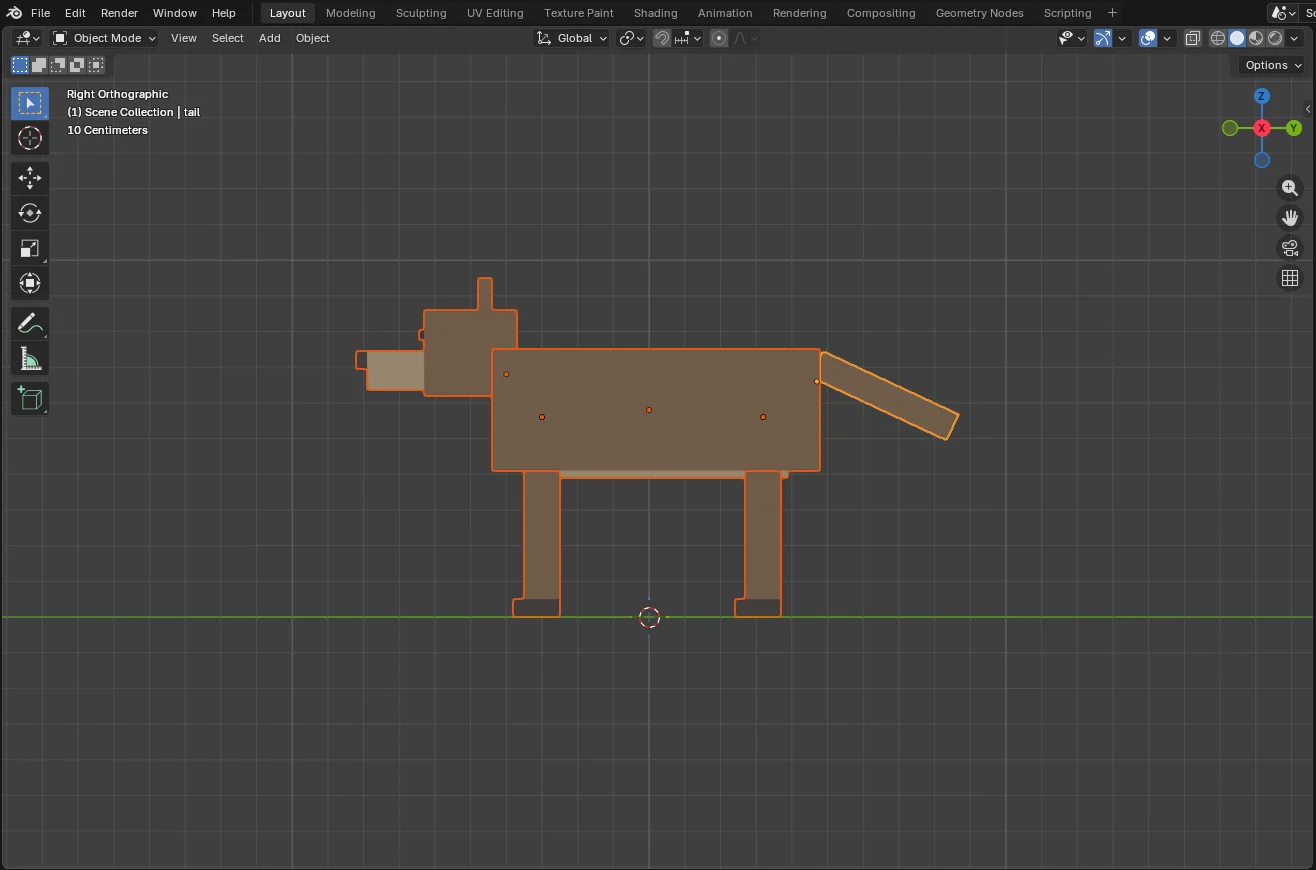
  4. Put each origin on its joint. The body at (0, 0, 0.58), the head at the neck (0, −0.4, 0.68), the legs at their tops (Z 0.56), the tail at its base (0, 0.47, 0.66). Type the point in Sidebar › View › 3D Cursor, select the part, and use Object › Set Origin › Origin to 3D Cursor. Parts turn about their origin.
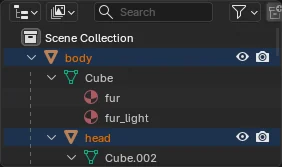
  5. Parent them to the body. Select a part, then the body last, and press Ctrl+P › Object (Keep Transform). The head, legs and tail then move with the body.
  6. Materials. Name the coat fur, the belly and snout fur_light, the nose and paws dark, and the eyes eyes|eyes. The game paints fur, fur_light and dark in the colors of the creature's sprite, so the wolf stays wolf-colored whatever you pick. Any other name keeps your color.
  7. Export the whole scene as models/animal_wolf.glb, then find a wolf in the game.
Blender, right view: a wolf made of boxes facing left toward minus Y, orange dots marking each part's origin at the hips, shoulders, neck and tail base.
Right view: the head toward −Y. The dots are the parts' origins, their joints.
Blender's outliner: body, with head and the other parts nested under it.
The parts under the body.

A part you leave out doesn't move. A part the game doesn't know is drawn and follows its parent. Don't use an armature: the game moves the parts itself.

Reference

Every kind of model

Where the origin goes, which way is front, which parts move and which materials the game recolors. Origin means the world's origin (0, 0, 0) in your Blender file. Every picture is the game's own model, at the size you would build it.

Held weapons and tools

An iron sword with three arrows from its grip: Z up the blade, Y toward the edge, X to the side.
Names
held_<weapon>_<material>, held_bow_<material>, staffs, tool_<tool>, item_<resource>, load_<resource>
Origin
Where the hand closes
Axes
Handle and tip up +Z, the edge or head toward +Y
Colors
Kept as you made them. A claiming flag's cloth and cloth_dark take the kingdom's color.

People

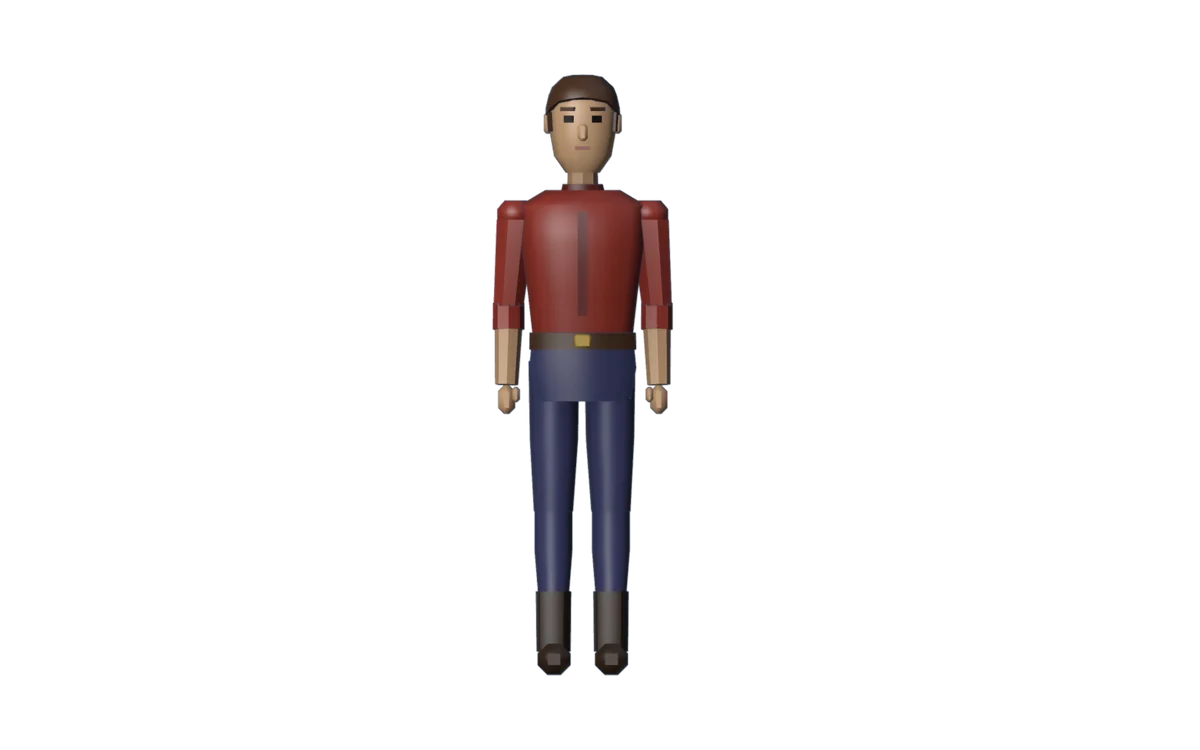
The game's human, front view, with a dot on each joint and its part name.
Names
person_<race>, person_<race>_fem for women, and person_<race>_child and _child_fem for children. Any you leave out keeps the game's body.
Origin
Between the feet, facing −Y, 1.75 m tall
Parts
hips torso head upper_arm_L lower_arm_L upper_leg_L lower_leg_L and the same with _R, plus hair_short hair_long beard. _L parts go on −X, the figure's right in Blender: the game draws people mirrored, so they end up on its left. One-sided details swap sides too.
Colors
From the sprite: skin hair eyes shirt shirt_dark pants shoes belt mouth accent. From dyes and the kingdom: cloth cloth_dark kingdom.
Looks
The game's person also has parts it shows one of at a time: face_0 to face_5, hair_0 to hair_7, beard_0 to beard_5, hat_…, job_…. Only the first 64 parts can be shown and hidden.

Creatures

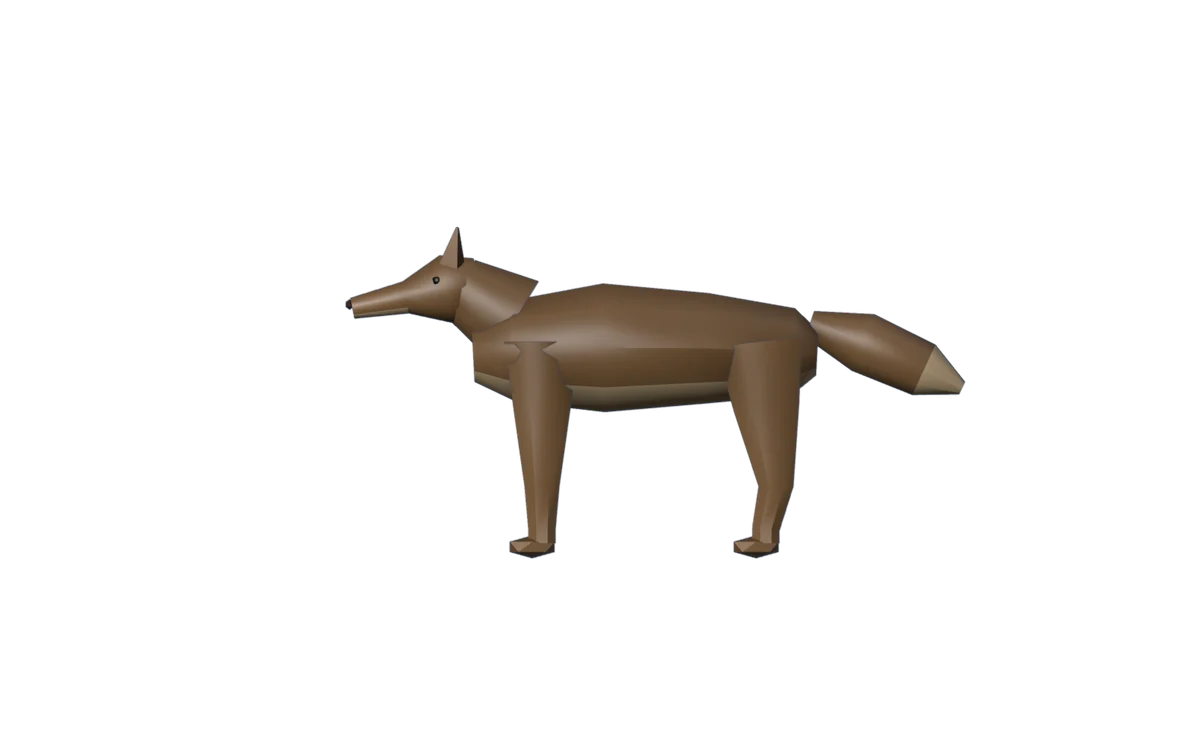
The game's wolf from the side, a dot on each joint with its part name, an arrow pointing to minus Y at its head.
Names
animal_<id>, monster_<id>. Another mod's creature: animal_<its id>, or person_<its id> if it walks like a person.
Origin
On the ground under it, facing −Y
Parts
body head tail; legs leg_fl leg_fr leg_bl leg_br, or leg_l leg_r, or leg_1 to leg_8; wing_l wing_r claw_l claw_r seg_1 to seg_12 flames halo
Colors
From the sprite: fur fur_light dark accent shell horn nose wing spots

Buildings

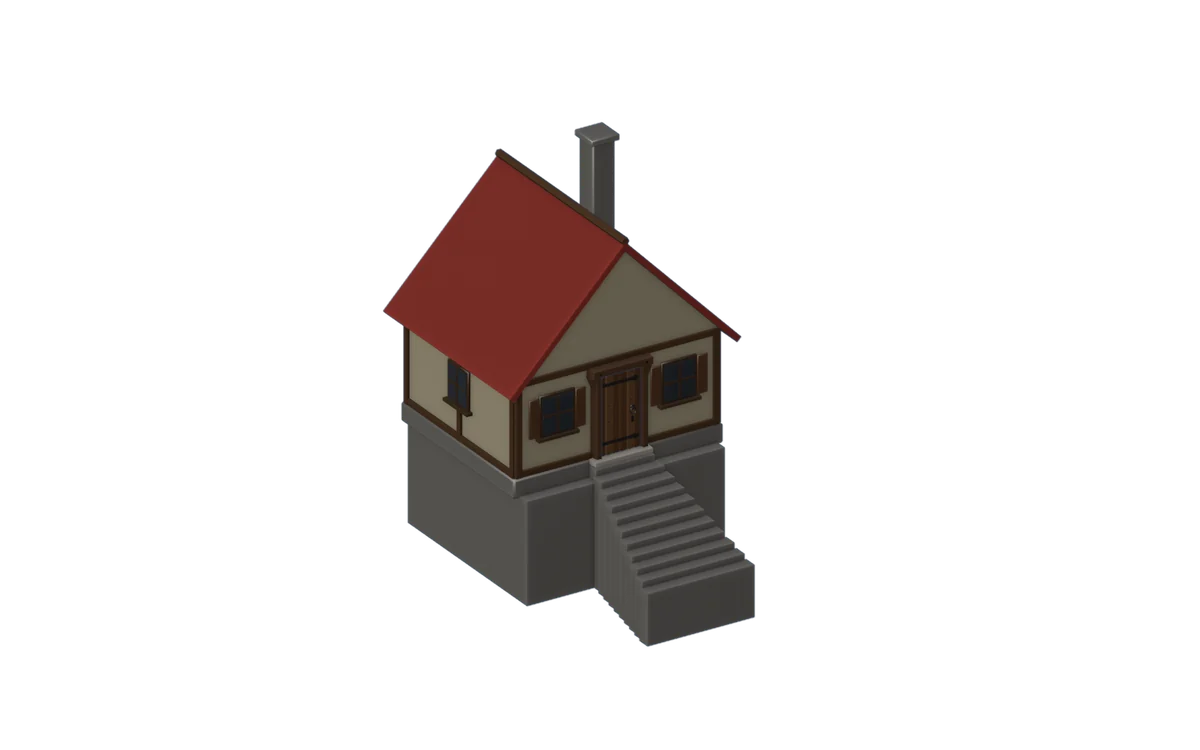
A small house with its footprint outlined, the origin in the middle and an arrow from the door toward minus Y.
Names
house_, hall_, tent_ and the rest in model_names.txt
Origin
The middle of the footprint, the floor at 0, the door side toward −Y. A stone footing may reach below 0 for slopes.
Size
Drawn at the game's scale for the building it replaces, so build it at the size model_names.txt gives. The rooms you walk into are measured in meters.
Parts
door_leaf swings on its origin. sails turn. Materials named door, door_gap and window shape the room inside.
Colors
roof and banner take the kingdom's color, and roof_dark and banner_dark too on other peoples' buildings. On human, elf, orc and dwarf buildings, wall, stone and timber take the race's.

Trees, bushes, rocks

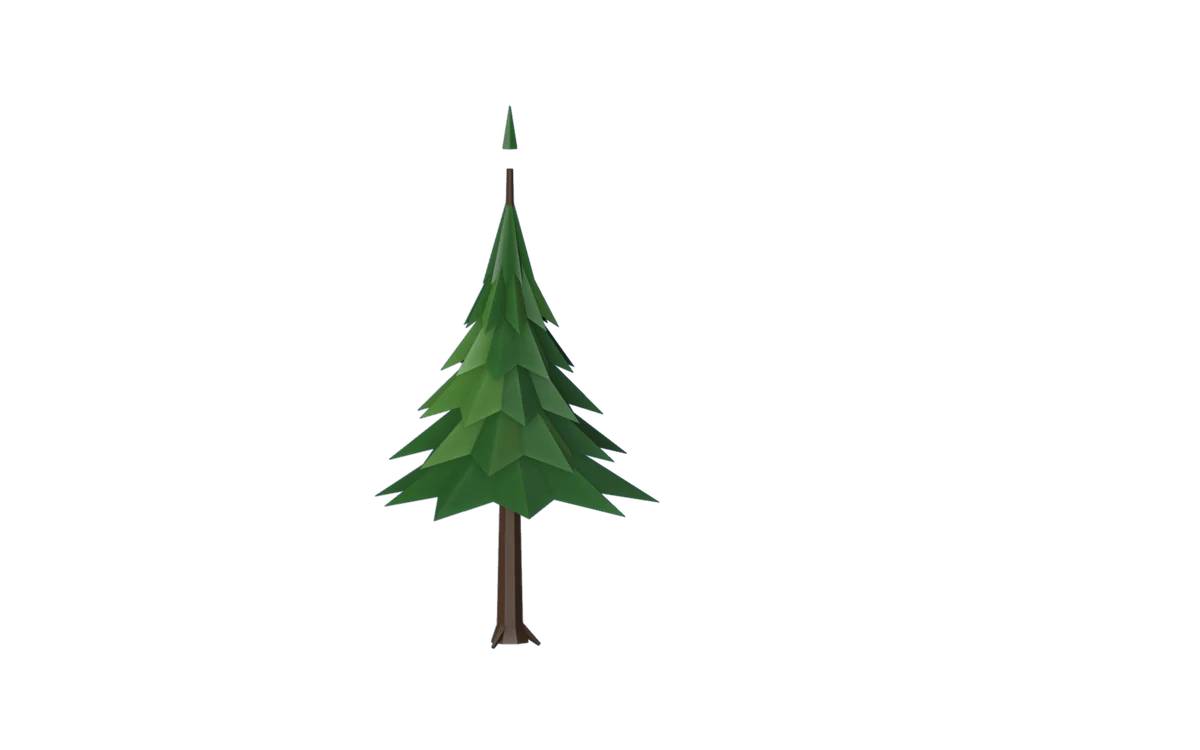
A pine with its origin at the trunk's foot and its height marked.
Names
tree_, bush, rock_
Origin
The trunk's foot. Each one is turned at random.
Colors
bark leaf_dark leaf_mid leaf_light fruit follow the tree's sprite and the seasons

Ships

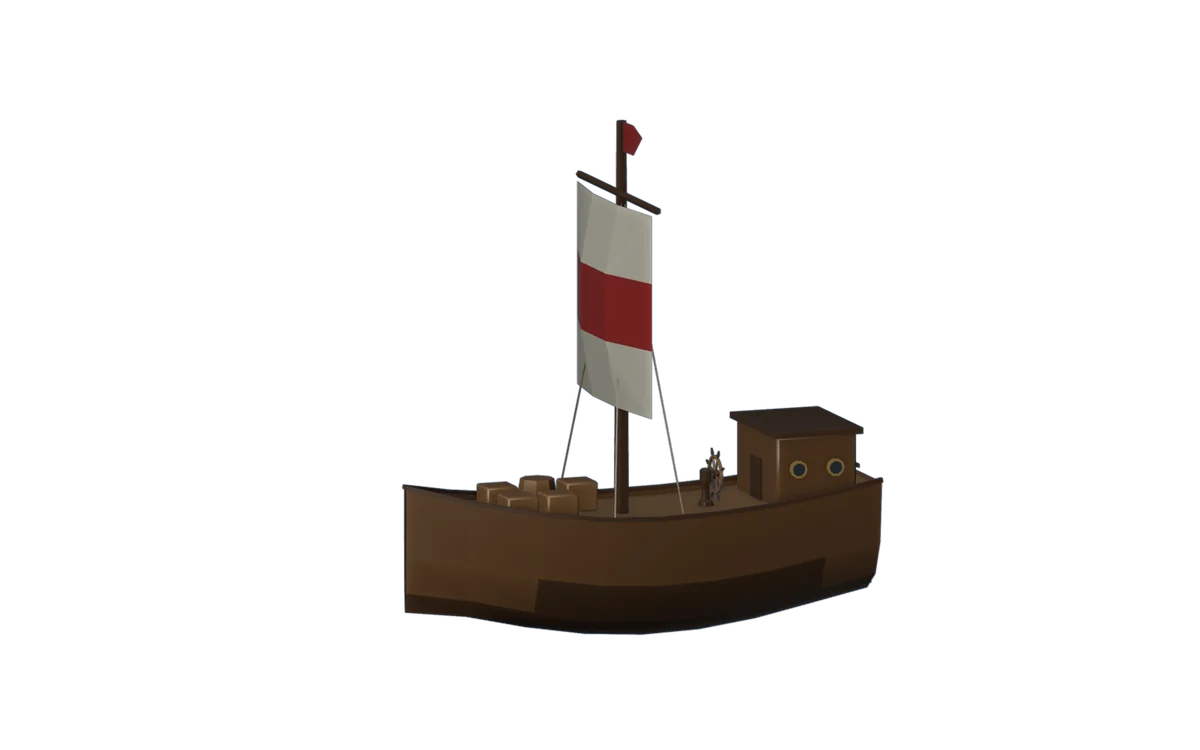
A cog from the side, the bow toward minus Y, the origin at the waterline.
Names
boat_raft boat_fishing boat_cog boat_barge boat_galleon
Origin
The middle of the hull at the waterline, the bow toward −Y
Parts
Parts named flag… sway. wheel turns with the helm.
Colors
banner and banner_dark take the kingdom's color

Furniture

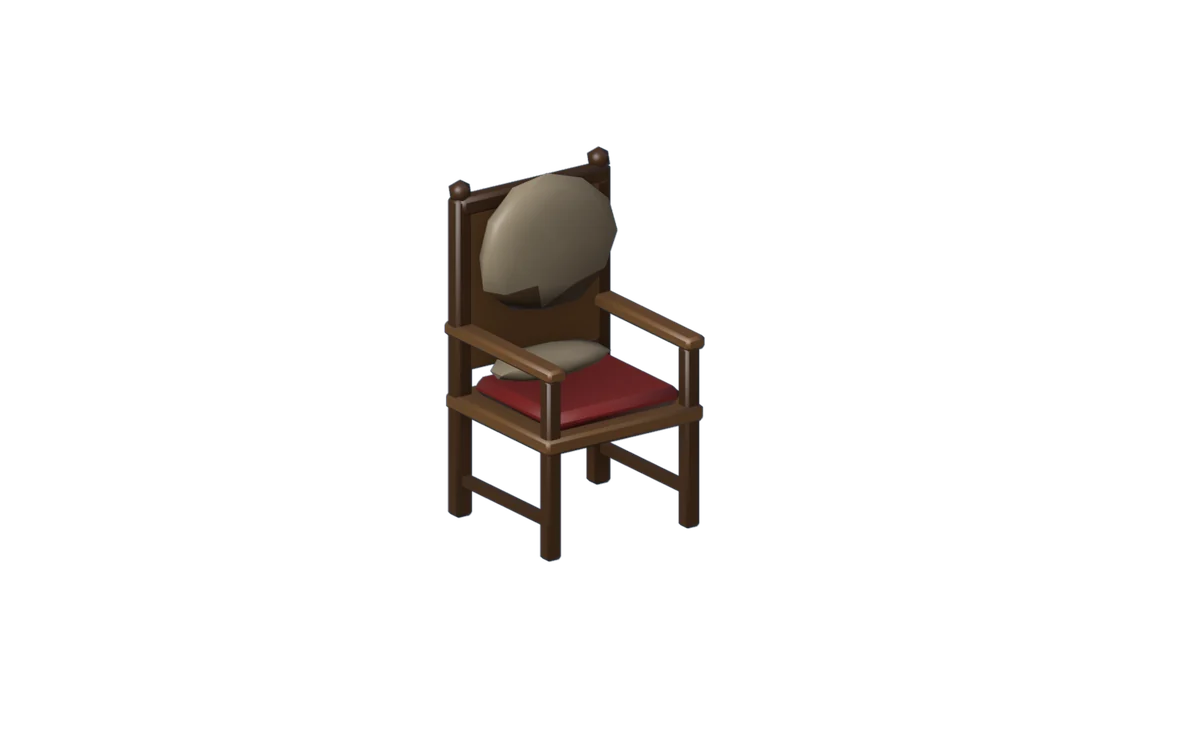
An armchair with its back against a wall marked plus Y and its front toward minus Y.
Names
int_p_ and the other int_ models
Origin
On the floor, the front toward −Y, the back against the wall at +Y
Size
Drawn exactly as big as you make it
Colors
wood wood_dark cloth cloth_light leather metal stone rock fur fur_light bark leaf ceramic bone wax food glow take the house's colors. Any other name keeps yours.

Can't be replaced yet

Building sites
site_ models name their parts with @ and ~, which a .glb can't carry yet
New things
A pack replaces models the game already draws. It can't add new items or buildings, only models for other mods' creatures.

Questions

Questions

Names and files

Where is my pack folder?

Press Pack folder in the Mods window to open it. On disk it is:

  • Windows %USERPROFILE%\AppData\LocalLow\mkarpenko\WorldBox\FirstPerson\packs
  • Mac ~/Library/Application Support/mkarpenko/WorldBox/FirstPerson/packs
  • Linux ~/.config/unity3d/mkarpenko/WorldBox/FirstPerson/packs

Each pack is a folder inside it with a worldfall.json and a models folder. A pack unzipped one folder deep is found too.

Which name do I give my file?

The name of the model it replaces, from model_names.txt in the packs folder. The game writes that file when the Mods window opens. Its columns are name, size in meters, info, parts and materials.

A model in a people's pack that hasn't loaded yet is listed by name only. Load a world where that people lives, then open the Mods window again.

What are the _m and _f models?

The same model with fewer faces, drawn from about 11 tiles away (_m) and from about 30 (_f). If your pack gives only the plain name, that model is drawn at every distance. Past 60 tiles, creatures and people are drawn as one box per part.

Can I give a model to another mod's creature?

Yes. Name it animal_<its id>, or person_<its id> for one that walks like a person. Creatures you have met that have no model are listed in names_asked.txt in the packs folder.

Size and placement

My model is far too big or too small
  • Check Scene Properties › Units: Metric, Unit Scale 1.0.
  • Compare the sidebar's Dimensions with the size in model_names.txt.
  • Or turn on fit and let the game size it.

Worldfall 0.9.8 and older read held things in body heights and the dragon, Crabzilla and the vents in tiles, not meters: a model built in meters came out 1.75 times too big. Update Worldfall, or turn on fit.

It lies on its back, or faces the wrong way

On its back: export with Transform › +Y Up on. The wrong way: the front must face −Y (toward you in Front view). Turn it 180° about Z. Held things point up +Z with the edge toward +Y.

It floats, sinks or sits off to one side

The game puts your file's world origin (0, 0, 0) where the model stands or is held: the ground under a creature or building, the grip of a held thing, the waterline of a ship. Move the model in Blender until that point is at the world's origin. An object's own origin only matters for a part that moves, as its joint.

Parts and joints

What counts as a part?

Every object with a mesh. Its name is the object's name (Blender's .001 endings are dropped). Its joint is the object's origin, and its parent is the object it is parented to. Empties pass their position down but aren't parts. Two objects with the same name become name and name_2.

Can I use an armature, weights or animations?

No. The game moves parts itself, by name. A skinned mesh is used in its rest pose and shape keys are dropped, and both show as errors on the pack's card. Remove the Armature modifier and the shape keys before exporting. Animations are ignored.

How many parts can a model have?

Up to 256. Only the first 64 can be shown and hidden, which matters for people (hair, faces, hats). The game's own person has 61.

Materials and colors

How do I name materials?

name|kind|flag|flag. The name is the slot's name: the game recolors some names (see every kind) and keeps your Base Color on the rest. The kind is the game's texture for it:

plain leaves bark wood stone roof thatch cloth skin hair metal fire glass plaster rock eyes ancient obsidian plates marble

A material named after a kind, like wood, takes that kind. Anything else without a kind is plain.

What do the flags do?
  • emissive lights itself: unlit, no shadow, no snow
  • nightglow lights up after dark, like a lived-in house's windows
  • shiny reflects the sky and glints in the sun
  • selfglow glows softly in its own color, more at night
  • sheer is half see-through
  • portal shows the world outside, for windows of rooms you walk into

foliage, crown and shell are for tree leaves.

Are image textures used?

Yes. An image plugged into a material's Base Color is drawn on it, through the model's UV map. Both PNG and JPEG work, packed into the .glb (the exporter's default) or saved beside it in models. The material's name still sets the slot and the kind, but a textured material keeps its image where the game would recolor the slot, and the kind's grain (wood rings, brushed metal) is left off it. Light, shadows and the finish still apply.

Images 64 pixels or smaller on their longest side are drawn crisp, texel by texel; bigger ones are blended. To choose, add "textures": "crisp" or "smooth" under the model in worldfall.json. Pixels under half alpha are holes, so a leaf or a chain can be a flat card with a cutout. Images over 2048 pixels are shrunk to fit. The pack's card lists every texture it drew.

Only Base Color is read. Metallic, Roughness, Normal and Emission maps are ignored. WebP is not read: in the exporter, set Data › Images to PNG.

Vertex colors (a Color Attribute) are multiplied with the Base Color. To export them, set Data › Mesh › Use Vertex Color to Active.

Parts of my model are invisible from one side

Faces are drawn from the front only. Point every normal outward (Edit Mode › Mesh › Normals › Recalculate Outside). Thin things seen from both sides, like leaves, flags and sails, need two faces back to back: a Solidify modifier does it.

All my materials came out one color

Blender's default names Material, Material.001 and so on all become one slot named material. Give each material its own name.

Settings: info and worldfall.json

What is a model's info?

Settings the game reads from a model: a weapon's tip, a house's width, a creature's gait. Your model gets the info of the model it replaces, so you can usually ignore it. To change a setting, add it in worldfall.json:

"models": {
  "held_axe_iron": { "info": "tip=0,0.3,0.7" }
}

Keys are key=value pairs separated by ;. Lengths and points are in meters, on your model. model_names.txt shows each model's info.

What goes in worldfall.json?
KeyWhat it is
idRequired. 2 to 64 lowercase letters, digits, dots, dashes or underscores, starting with a letter or digit.
title, author, version, descriptionShown on the pack's card and its Workshop page
worldfallThe oldest Worldfall the pack works with. A newer number warns players first.
fittrue fits every model to the one it replaces (sizes)
modelsPer model: info, fit and textures ("crisp" or "smooth")
loadAfterPack ids this pack should sit above when it is turned on
requiresWorkshop item numbers of other packs it needs
workshopWritten by Publish: the pack's Workshop item
How big can a model be?

A .glb of up to 48 MB with 400,000 triangles, 256 parts and 64 materials. The game's own models mostly have 500 to 4,000 triangles. A thousand is typical.

Testing

How do I turn a pack on?

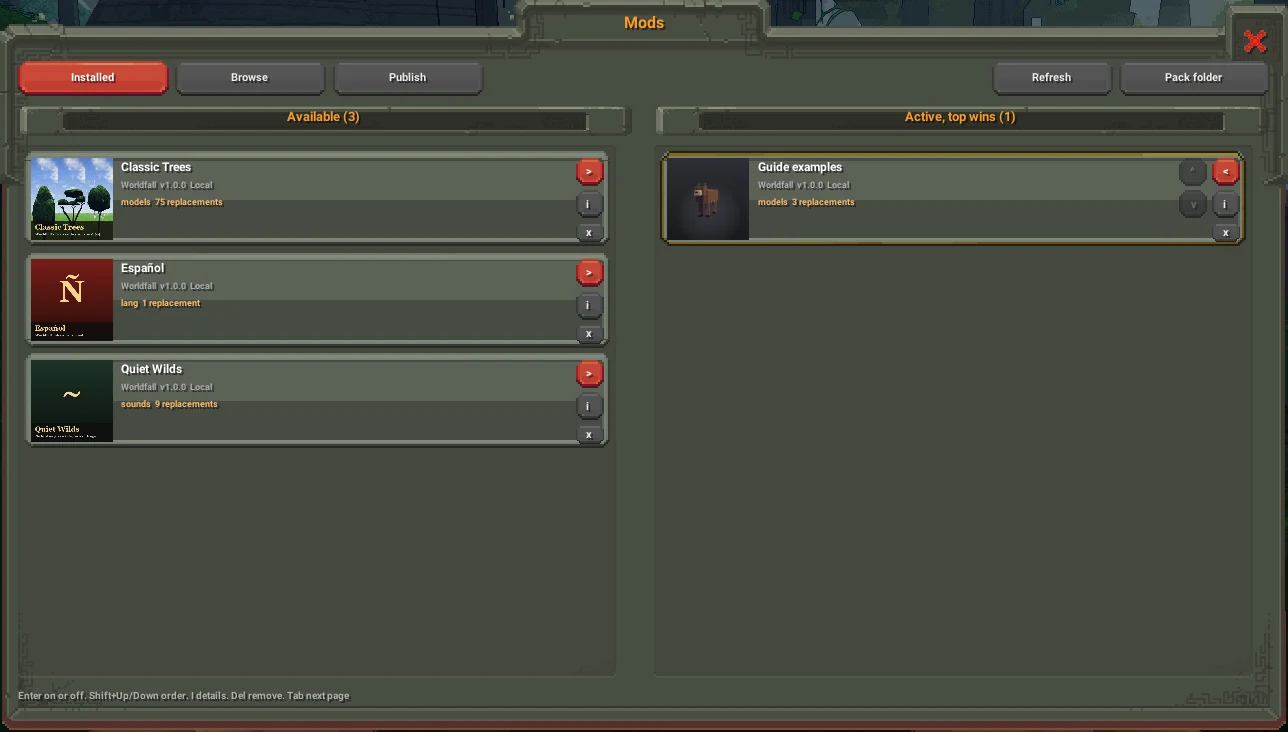
F2 › Mods › Manage. Move the pack from Available to Active with its > button or Enter. When two active packs replace the same model, the one higher in the list wins. Shift+Up/Down moves a pack.

While a pack is on, every save into its folder shows in the game within about two seconds. No restart is needed.

The Mods window: shipped packs under Available on the left, Guide examples under Active on the right with 3 replacements.
The Mods window. The example pack is on, at the top of Active.
My model doesn't show up

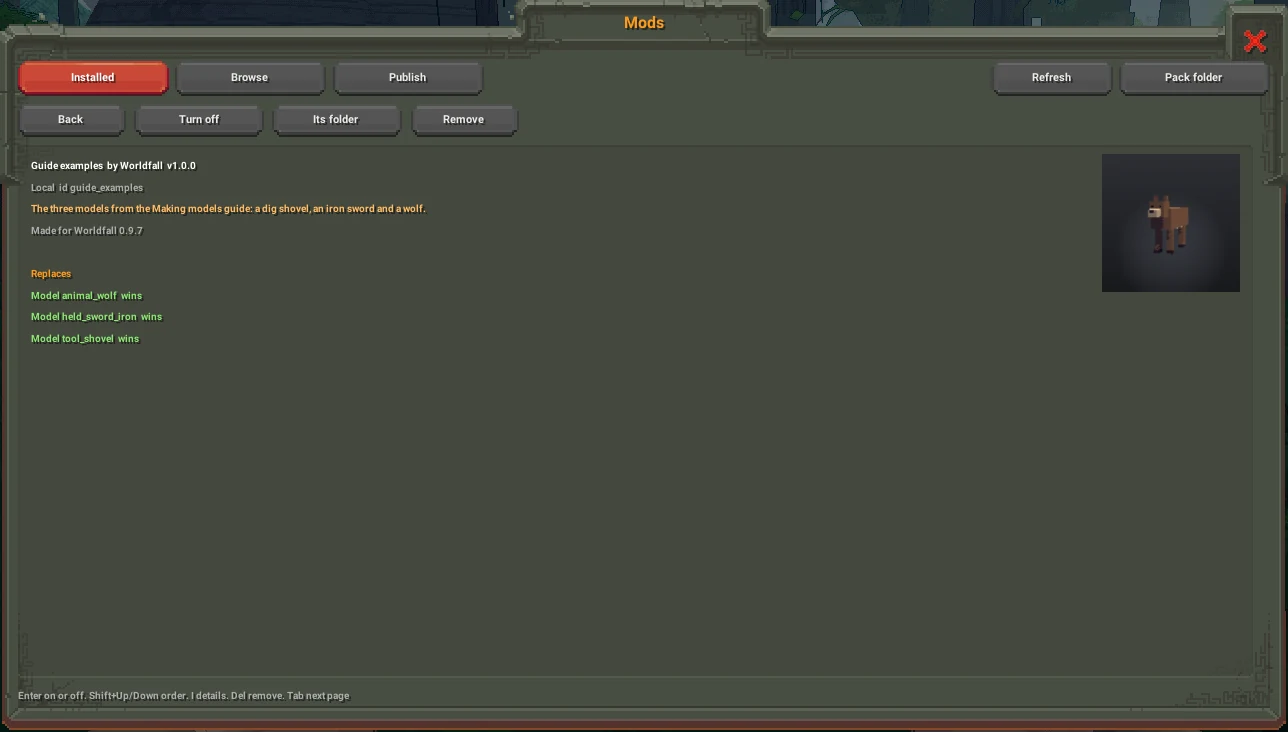
Look at the pack's card. Errors show in red as N errors, warnings in yellow, and its i button lists both. A model that can't be read is left out and the game's own stays. Smaller problems let it load but still count as errors. Errors block publishing; warnings don't. Files are only read while the pack is on.

A pack's details: its title, id and description, then a Replaces list with animal_wolf, held_sword_iron and tool_shovel each marked wins.
The i button: what the pack replaces, and its errors when it has any.
The card saysIsDo this
only .glb is readWarningExport with Format glTF Binary (.glb). Keep .blend files out of the pack.
a model name is lowercase letters, digits and _ErrorRename the file
models go straight in models/, not in foldersWarningMove the file up into models
no such model in WorldfallWarningCheck the name against model_names.txt
(new creature), in the i listNoteNames starting animal_, monster_ or person_ aren't checked. If you meant a game creature, check the spelling.
no meshes in the sceneErrorNothing was exported. With Selected Objects on, select your model first.
the meshes are compressedErrorTurn Data › Compression off
more than 64 slots (materials)ErrorUse fewer materials
two parts named 'X'ErrorGive each object its own name
'X' is not a kind or flagErrorCheck the spelling after | in a material's name
skins are not read, morph targets are not readErrorRemove the Armature modifier and shape keys
No worldfall.json in its folderErrorStart from New pack, or copy one in
Made for Worldfall X or laterWarningUpdate Worldfall
Will removing a pack delete my work?

Yes. A pack's x button removes its folder: to the recycle bin on Windows, to FirstPerson/removed_packs on Mac and Linux. Keep your .blend files outside the pack folder.

Publishing

Put it on the Steam Workshop

Worldfall uploads the pack for you. Players subscribe from the Workshop or from the Browse tab in the game.

Each upload replaces the item's Workshop description with one made from your worldfall.json. Write the description there.

  1. Keep Steam running. Turn your pack on once and make sure its card shows no errors.
  2. Optional: put a preview.png of 512 × 512 and under 1 MB in the pack folder. Without one, the game draws your first model as the picture.
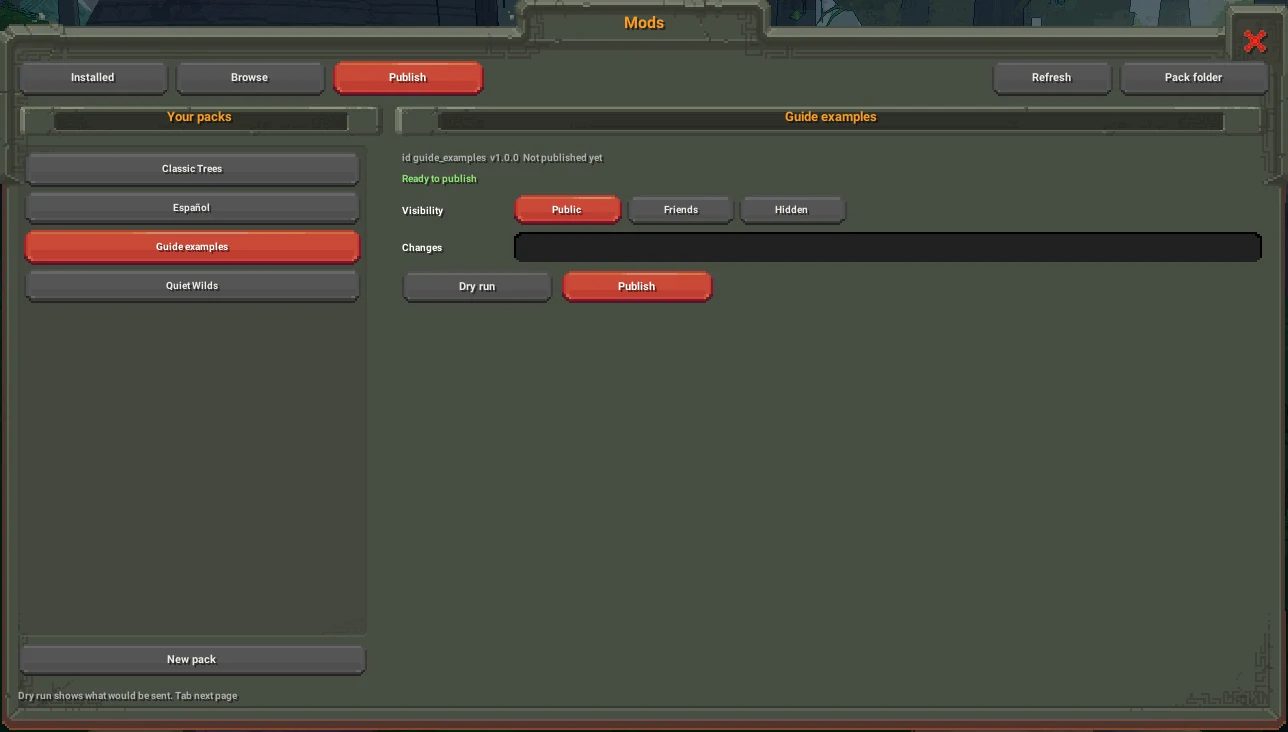
  3. F2 › Mods › Publish. Pick your pack under Your packs. It should say Ready to publish.
  4. Choose Visibility: Public, Friends or Hidden. Write what changed under Changes. Dry run shows what would be uploaded without sending it.
  5. Press Publish, then Upload. If Steam asks, accept the Workshop agreement on Steam and publish again to finish.
  6. To update it later, raise version and publish again. The item's number is saved in worldfall.json, so the same item is updated.
The Publish page: Your packs on the left with Guide examples picked, on the right Ready to publish, Visibility Public, Friends or Hidden, a Changes box, Dry run and Publish buttons, and New pack at the bottom left.
The Publish page. New pack is at the bottom of the list.

Only the files the game reads go up: worldfall.json, models, sounds, lang and the preview. The game wraps them as a NeoModLoader mod that requires Worldfall and NeoModLoader, so subscribers get both. A pack subscribed from Browse turns itself on.